TLS Line Protocol












60-second summary
Ubuntu/WSL-focused minimal client/server that perform a TLS handshake, then a HELLO → WORK → info requests → DONE flow.
WORK solved by a fast C++ helper (multi-threaded) invoked from Python.
Fully testable: unit tests for protocol/parsing/hashing and mocked SSL/subprocess, generating throwaway certs.
What this project demonstrates
A small but complete Python client/server application that exercises a real network protocol flow over TLS, with a performance-critical Proof-of-Work step delegated to a compiled C++ helper. The repo is set up like a “real” project: reproducible local/Docker runs, automated tests across Python and C++, type checking, linting/formatting, and Sphinx/Doxygen docs.
Backend Python: CLI-driven client/server built on Python 3.11 (sockets +
ssl) with structured logging and clear error paths.Interop + performance: multi-threaded C++20 POW solver (OpenSSL SHA1) invoked from Python via
subprocess, with path/permission hardening checks.Testing (Python + C++): pytest unit + integration coverage (including TLS handshake behavior) plus C++ unit tests via GoogleTest/CTest.
Tooling/quality: pre-commit hooks (ruff/black/isort/codespell), mypy, and GitHub Actions CI.
Docs: Sphinx (Python API from docstrings) + Doxygen/Breathe (C++ API), published via Read the Docs.
High-level flow

Short demo: server + client solving WORK and answering requests
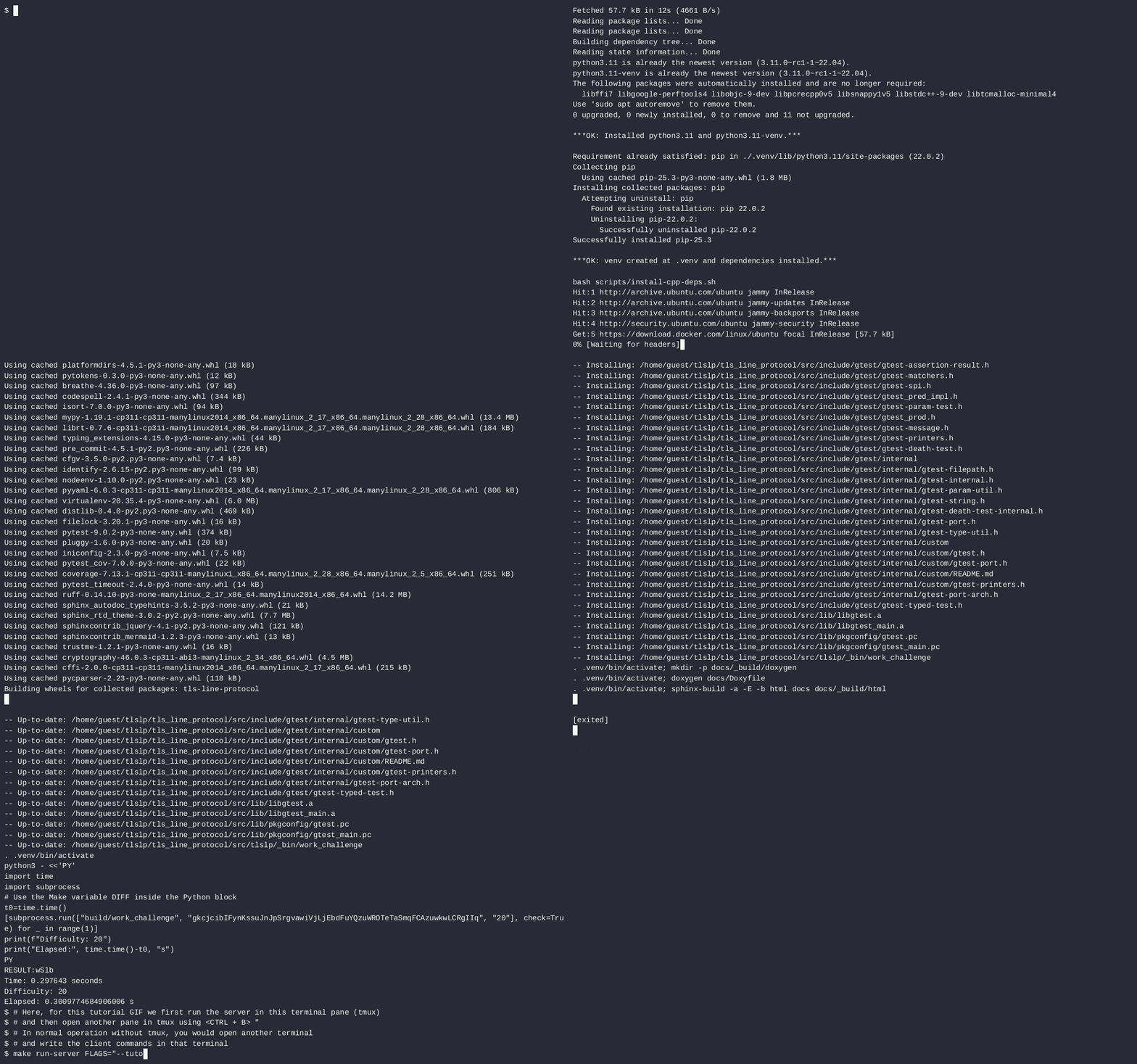
Short description
This repo implements a small TLS client/server pair that:
performs a simple line-based handshake (
HELLOthenWORK)solves a Proof-of-Work challenge where the client must find a suffix so that
SHA256(token + suffix)has a required number of trailing zero bitsanswers a sequence of server “info request” commands until
DONE(orFAIL).
The WORK number of bits is configurable (see --n_bits on the server).
More details on how the project works are in the Guide.
Table of Contents
Quickstart
Download repo
In an Ubuntu/WSL terminal:
sudo apt install -y git
git clone https://github.com/elliottbache/tls_line_protocol.git
cd tls_line_protocol
Quickstart (recommended): Local (Ubuntu/WSL)
In an Ubuntu/WSL terminal:
make deps
make setup
make run-server
Open another terminal in the same folder and run:
make run-client
That’s it, you’ve run the TLS line protocol end-to-end! Keep reading for a more in-depth explanation of what just happened.
Tutorial mode and expected logs
Optional: compare your logs to the expected tutorial run. If you want a deterministic “known-good” run
you can compare against (useful for demos, onboarding, and quick sanity checks), run the client/server
in tutorial mode and compare the produced logs to the committed expected logs. This can be achieved
by adding the FLAGS="--tutorial" to make run-server and make run-client above.
# Terminal 1
make run-server FLAGS="--tutorial"

# Terminal 2
make run-client FLAGS="--tutorial"
Expected tutorial logs live here:
docs/tutorial/server.logdocs/tutorial/client.log
Compare using the provided script
From the repository root:
bash scripts/compare-tutorial-logs.sh
Quickstart (alternative): Docker
Use this if you prefer Docker. Otherwise, use the local quickstart above.
Prepare C++ binary
Run:
make certs
Launch Docker daemon
On WSL:
sudo service docker start
On Ubuntu:
sudo systemctl start docker
Start a docker container
docker start <name>
Then run
docker compose up --build
Docker Compose uses network_mode: host (Linux/WSL). On Mac/Windows, use local make run-* or adjust compose networking/certs.
Installation (manual, for development or troubleshooting)
If you used Quickstart (make setup), you can skip this section.
This package is intended for use in Ubuntu/WSL. All installation and execution instructions are for these distributions.
The quickest and easiest way to install the various components of this package can be found in Quickstart. The following steps are for manual installation.
Create a Python virtual environment with dependencies (skip this if using Docker)
System requirements (Ubuntu/WSL):
Python: Python 3.11 + venv support (
python3.11,python3.11-venv)C++ WORK solver: CMake ≥ 3.16, a C++20 compiler (GCC/Clang), and OpenSSL dev libs (
libssl-dev)Build tools:
build-essential(compiler + make)
These are installed via:
make deps(runs the scripts below), orbash scripts/install-python-deps.shandbash scripts/install-cpp-deps.sh
Note: if downloaded with wget or as a zip file, the permissions may be lost on the scripts. In this case,
you may need to change the permissions with chmod +x scripts/install-python-deps.sh scripts/install-cpp-deps.sh.
Prefer zero system dependencies?
Use Docker instead (see Quickstart (alternative): Docker below).
Create and activate a venv
python -m venv .venv
. .venv/bin/activate
Install rest of dependencies in venv
pip install -U pip
pip install -e .[dev]
Compile C++ WORK challenge binary
The C++ code work_challenge.cpp is used to find a hash with a specified n_bits trailing zero bits. C++
is used rather than Python due to its speed.
Build binary
cmake -S . -B build
cmake --build build --config Release
It can also be compiled directly without
CMake or the Makefile in an Ubuntu terminal from the cpp folder, enter:
mkdir ../build
g++ -O3 -std=c++17 work_challenge.cpp work_core.cpp -o ../build/work_challenge -lssl -lcrypto -pthread
Move files to binary directory
mkdir -p src/tlslp/_bin
cp build/work_challenge src/tlslp/_bin/
Create client and server side certificates
Easy creation with script
Follow these steps to create the proper certificates for local testing. These same commands may be found in
scripts/make-certs.sh, which can be run with the following:
bash scripts/make-certs.sh
Manual certificates creation
A certificates folder should be created and
these certificates should be placed in the certificates folder. The steps are for typing in an Ubuntu terminal from the
project root folder.
mkdir certificates
cd certificates
Client side
Create a client key and certificate signing request (CSR)
openssl genpkey -algorithm EC -pkeyopt ec_paramgen_curve:P-256 -out ec_private_key.pem
openssl req -new -key ec_private_key.pem -out client.csr -subj "/CN=client"
This should create client.csr and ec_private_key.pem.
Sign the client key with the CA
openssl x509 -req -in client.csr -CA ca_cert.pem -CAkey ca_key.pem -CAcreateserial -out \
client_cert.pem -days 365 -sha256
This creates ca_cert.srl and client_cert.pem.
Server side
Prepare the server key and CSR
openssl genrsa -out server-key.pem 2048
openssl req -new -key server-key.pem -out server.csr -subj "/CN=localhost"
Prepare server certificate signed by CA
# server cert extensions file
cat > server.ext <<'EOF'
basicConstraints=CA:FALSE
keyUsage=digitalSignature,keyEncipherment
extendedKeyUsage=serverAuth
subjectAltName=DNS:localhost,IP:127.0.0.1
EOF

# server cert signed by CA
openssl x509 -req -in server.csr -CA ca_cert.pem -CAkey ca_key.pem -CAcreateserial \
  -out server-cert.pem -days 365 -sha256 -extfile server.ext
This creates server-cert.pem and server-key.pem.
Execution / Usage (manual, for development or troubleshooting)
If you used Quickstart (make setup), you can skip this section.
This program was developed with Python 3.11.14. It is intended for use in Ubuntu/WSL, and some of the security checks are not available in Windows (such as checking that the WORK challenge binary file launched with subprocess.run is not world writable).
Option A: No Docker
Run server (listens on localhost, verifies client by default)
From within the Python virtual environment (see Virtual environment):
tlslp-server
Various flags are available for running in CLI. e.g.
# Run server on localhost:1234 with 6 n_bits
tlslp-server --host 127.0.0.1 --port 1234 \
  --ca-cert certificates/ca_cert.pem \
  --server-cert certificates/server-cert.pem \
  --server-key certificates/server-key.pem \
  --n_bits 6
A typical command for development is:
tlslp-server --log-level DEBUG
For a complete list, run
tlslp-server --help
In another terminal, run the client
From within th venv:
tlslp-client
Various flags are available for running in CLI. e.g.
# For quick localhost development only (skips certificate verification):
tlslp-client --host localhost --ports 1234 \
  --work-bin bin/work_challenge --insecure
A typical command for development is:
# Run client logging all messages
tlslp-client --log-level DEBUG
Option B: Docker
Docker users: see Quickstart (alternative): Docker.
Compare your output to the expected tutorial logs
Tutorial mode is designed to be deterministic so you can validate behavior by comparing your logs against committed “golden” logs.
Run tutorial manually
In two terminals:
# Terminal 1
python -m tlslp.server --tutorial

# Terminal 2
python -m tlslp.client --tutorial

# Either terminal
bash scripts/compare-tutorial-logs.sh
Expected logs (golden files)
The expected tutorial logs are stored in the repository at:
docs/tutorial/server.logdocs/tutorial/client.log
Where your local logs are written (Ubuntu/WSL)
On Ubuntu/WSL, this project writes persistent logs under the XDG State directory:
XDG_STATE_HOME/tlslp/logs/
If XDG_STATE_HOME is not set, it defaults to:
~/.local/state/tlslp/logs/
So the default log files are:
~/.local/state/tlslp/logs/server.log~/.local/state/tlslp/logs/client.log
What is happening?
The client will connect to the server and answer the various commands sent by the server. The server will first send a a handshake set of commands (HELLO and WORK). Once the WORK challenge is solved by the client under 30 minutes, the correct suffix will be sent to the server and a further 20 random commands will be sent. If FAIL is randomly selected, the connection will close. Otherwise, the final command will be DONE.
Development
An in-depth description of the modules and functions of this program can be found in the Read the Docs and the GitHub page.
Make commands
A list of make commands is made available through Makefile. The following list comes from using make help:
make all: Makes all except run-server and run-client
make deps: Makes all dependency installation (Python & C++)
make setup: Makes those needed for initial setup
make ci: Makes those needed for CI (lint, typecheck, test)
make clean: Remove caches and build artifacts”
make venv: Create virtualenv (.venv)
make install-dev: Install project + dev deps
make certs: Creates the certificates necessary for mTLS
make build-cpp: Builds the C++ WORK challenge binary and places it in _bin
make docs: Build Sphinx HTML docs
make lint: Run ruff (lint), black –check, isort –check, codespell
make format: Run ruff –fix, black, isort
make typecheck: Run mypy
make test: Run pytest
make test-cpp: Run CTest
make run-server: Run server (local)
make run-client: Run client (local)
make bench: Quick benchmark for WORK (example)
Demo GIF
The .cast file is available for easy regeneration of the GIF file. The following commands were used
to create the GIF from a clean folder.
asciinema rec -i 3 --overwrite -t "TLSLP demo" -c "tmux new-session -A -s tlslp-demo" demo.cast
git clone https://github.com/elliottbache/tls_line_protocol.git
cd tls_line_protocol/
make setup
# Here we first run the server in this terminal pane (tmux)
# and then open another pane in tmux using <CTRL + B> %
# In normal operation without tmux, you would open another terminal
# and write the client commands in that terminal
make run-server
ctrl + B %
cd tls_line_protocol
make run-client
ctrl + B <-
cat ~/.local/state/tlslp/logs/server.log
ctrl + B ->
cat ~/.local/state/tlslp/logs/client.log
exit
exit
asciinema-agg demo.cast demo.gif
rm -rf tls_line_protocol
The resulting .cast and .gif files must then be copied into the docs/ folder of the original git clone folder.
Sphinx in PyCharm
In order to create Sphinx documentation from the docstrings in PyCharm, a new run task must be created:
Run > Edit Configurations… > + (top-left) > Sphinx task. In the window that opens, name the Sphinx task in the
Name field, select html under the Command: dropdown, select the docs folder in the root folder in the Input:
field, and select the docs/_build folder in the Output: field. If the docs or docs/_build folder do not already
exist, they will perhaps need to be created. The Sphinx documentation can now be created by going to Run > Run… and
selecting the Sphinx task name.
Testing
Python code
The Python tests can be run from the repo root with
pytest -q
or with
make test
C++ code
To run the C++ tests, you can simply use
make test-cpp token=<token> n_bits=<n_bits>
where token is by default “gkcjcibIFynKssuJnJpSrgvawiVjLjEbdFuYQzuWROTeTaSmqFCAzuwkwLCRgIIq”,
and n_bits is by default 7. To run the CTest manually, you can build with:
cmake -S . -B build
cmake --build build --config Release
and run with:
ctest src/tlslp/_bin/work_core_test <token> <n_bits>
Technologies
This project is built with:
Languages
Python 3.11
C++20
Python ecosystem
pandas – tabular data wrangling
C++ / native tooling
CMake – cross-platform C++ build system
CTest – test runner integrated with CMake
GoogleTest – C++ unit testing framework
Testing & quality
pytest – Python unit & integration tests
mypy – static type checking for Python
flake8 – linting
black – code formatting
Documentation
Sphinx – API & narrative documentation
MyST – Markdown support for Sphinx
autodoc / autosummary – auto-generated API docs from docstrings
Read the Docs – hosted documentation
Environment & automation
pip / pipx – installation
Make (helper commands:
make setup,make run,make tutorial, …)Docker / docker-compose (optional containerized environment)
GitHub Actions (CI pipeline)
codecov (test coverage reporting)
Security
This project is a simple demo. The default configuration uses local, mutual TLS (mTLS) between client and server.
There is also a flag that allows for basic, unverified TLS to simplify running the sample.
Basic TLS vs. mTLS
By default, this repo is configured to run in secure (mTLS) mode:
The server requires a client certificate (
ssl.CERT_REQUIRED) and verifies it against the configured CA.The client verifies the server certificate against the configured CA and performs hostname/SAN checks.
For quick localhost development, you can run in insecure mode using --insecure:
The server does not verify client certificates.
The client does not verify the server certificate and disables hostname checks.
Important: --insecure should only be used for local testing.
Contributing
To contribute to the development of TLS line protocol, follow the steps below:
Fork TLS line protocol from https://github.com/elliottbache/tls_line_protocol/fork
Create your feature branch (
git checkout -b feature-new)Make your changes
Commit your changes (
git commit -am 'Add some new feature')Push to the branch (
git push origin feature-new)Create a new pull request
More in-depth information can be found in CONTRIBUTING.md.
Contributors
Here’s the list of people who have contributed to TLS line protocol:
Elliott Bache – elliottbache@gmail.com
The TLS line protocol development team really appreciates and thanks the time and effort that all these fellows have put into the project’s growth and improvement.
Change log
v0.1.0
TLS Client/Server Protocol with WORK, PyTest Suite & Sphinx Docs
v1.0.0
Updated TLS Client/Server, converting into a package, implementing CI and Docker, adding logging and much more
License
TLS line protocol is distributed under the GPL-3.0 license. For more info, see LICENSE.